Table Translation
Documentation for Table Translation in the D.A. Localizator, covering setup, configuration, workflows, and troubleshooting for Unity projects.
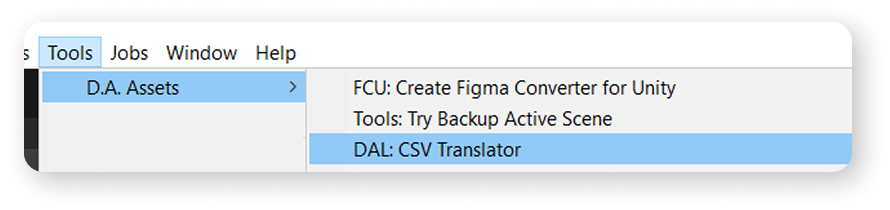
To translate your table from one language to another, use the "CSV Translator" tool.
To open it, go to the context menu as shown in the screenshot.
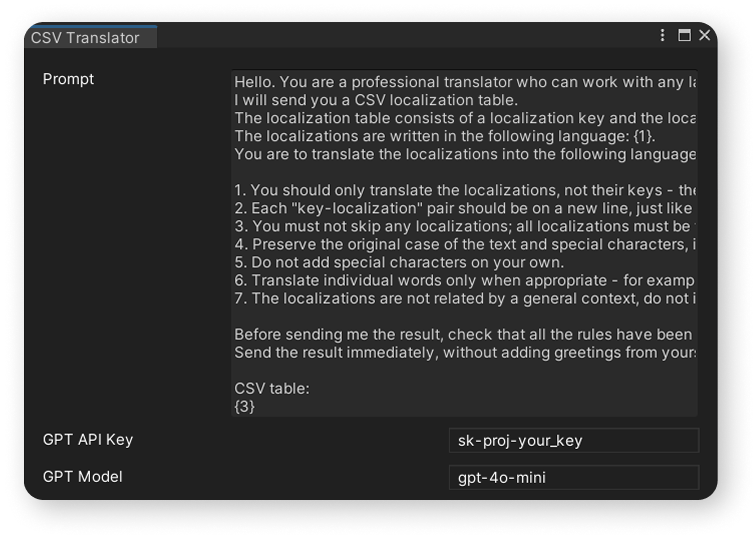
a) In the opened window, you need to enter your API key.
Here’s a video tutorial on how to obtain a ChatGPT API Key.
b) Enter the model name that you will use to translate the table.
You can find the model names at this link.
The "gpt-4o-mini" is a great fit for this task.
Select your Localizator (ScriptableObject) that contains your table configuration.
Regardless of the source of your table in the configuration, it will be loaded into the CSV Translator.
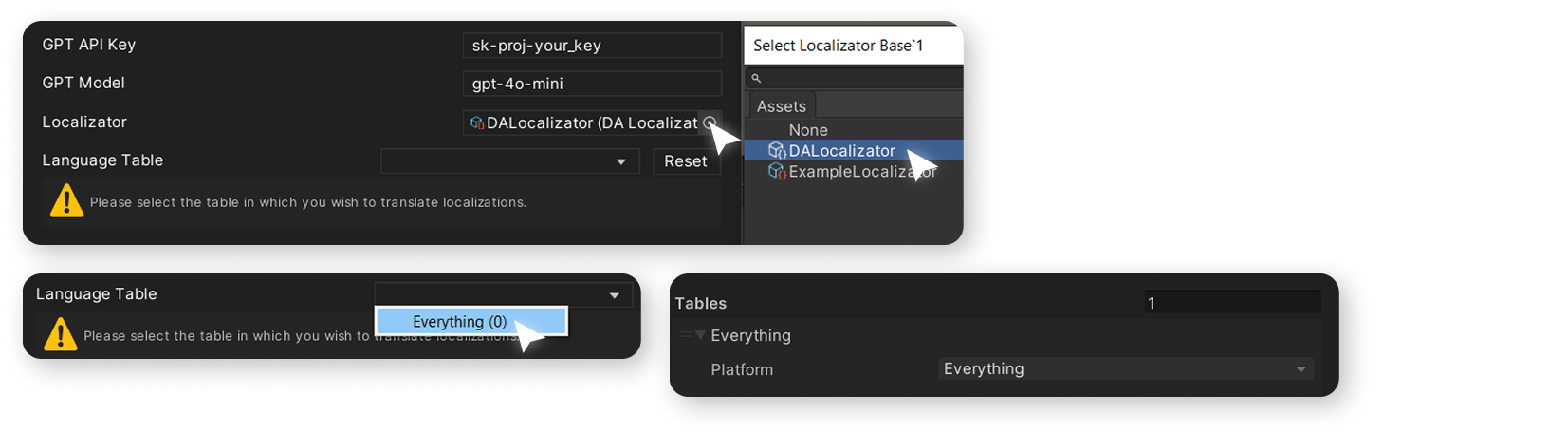
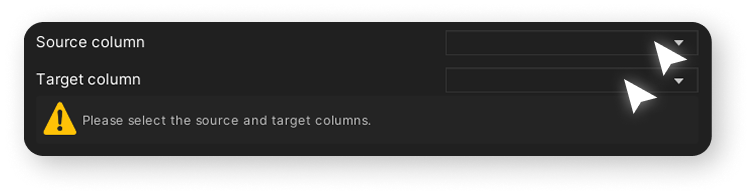
Select the column of the table that will serve as the source for translation, and the target column where the translation will be written.
The "Target column" must be present in the table before you select the "Language Table".
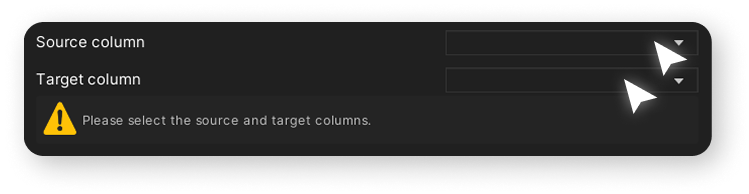
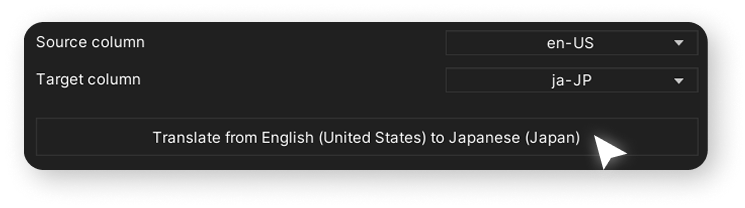
After selecting both columns, you will see a button that indicates from which language to which language the text will be translated.
Click the button to start the translation process using ChatGPT.
After GPT translates the table, the asset will create a new table based on the existing table and the new translation, then offer to save it as a CSV file.
A window will open to select the location where you want to save the file.
Overwriting files is not supported, so if you already have a file with the same name, you will need to rename it.
If you encounter errors while translating the table, please contact Live Support.
The developer will try to respond as quickly as possible; however, please keep in mind the time zone differences.
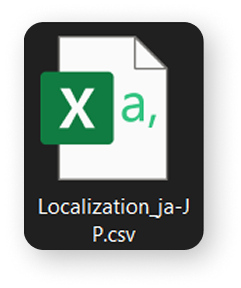
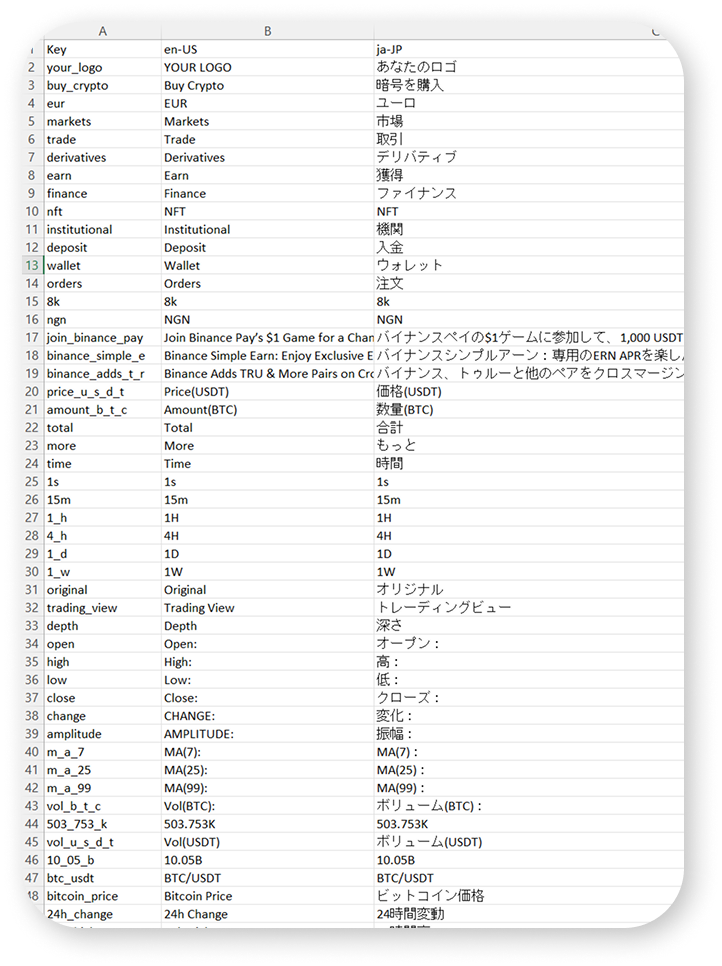
On the screenshot to the left, you can see the result of the table translation. GPT, according to the prompt, decided not to translate certain lines.