Import from an offline copy of the project
Import Figma layouts into Unity from an offline project copy, including plugin setup and ZIP archive workflow.
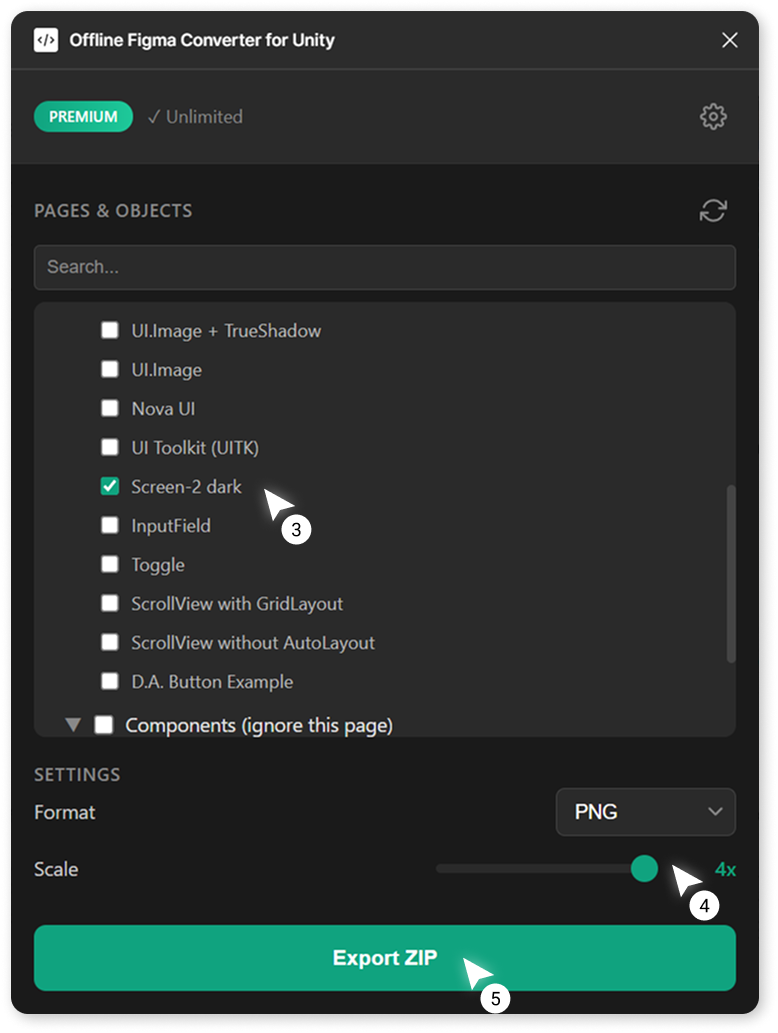
Install the "Offline Figma Converter for Unity" plugin from the Figma Community.
More detailed installation instructions will appear after the plugin release.
Open this plugin in the Figma project you want to import into Unity.
In the plugin interface, select the pages or frames you will import into Unity.
Choose the export scale for the images.
Unlike importing via a project link, you won’t be able to change the scale in the main asset settings in Unity after creating the ZIP archive, i.e., if you select scale "4" in the plugin interface, in Unity you will only be able to import this ZIP project with scale 4.
Click the "Export" button.
Wait for the export to complete and save the archive in your OS file explorer.
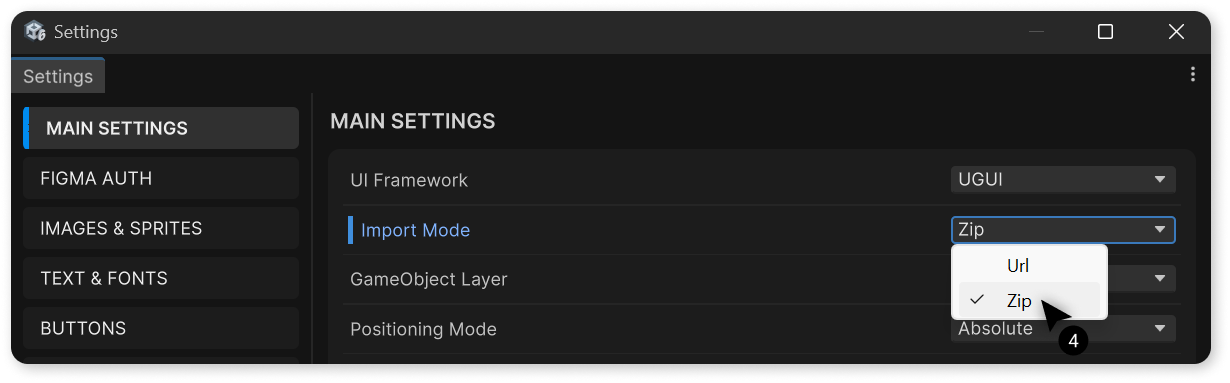
In the asset settings in Unity, set "Import Mode" to "Zip".
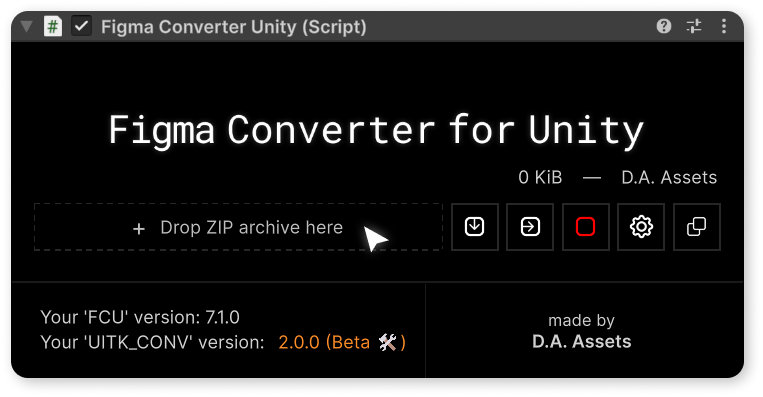
After changing the Import Mode, the asset interface in the Inspector will change. You will see a drop zone where you need to drag the previously exported ZIP archive.
Alternatively, you can click on the drop zone, which will open your OS file explorer, where you can manually select the required ZIP file.
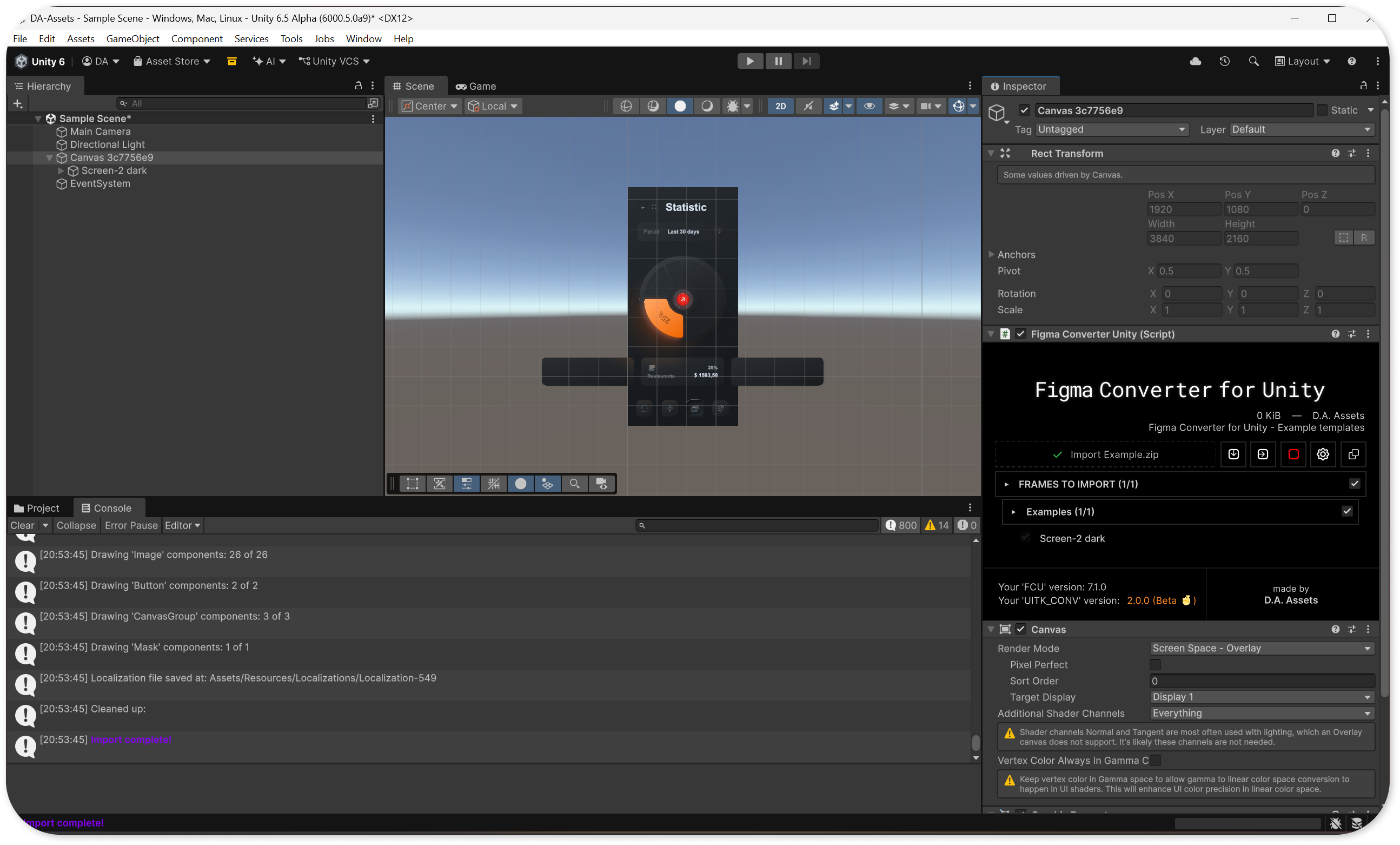
Click the project download button.
In "Zip" mode, the project is not downloaded directly from Figma servers, but is extracted into a Temp folder from the ZIP archive.
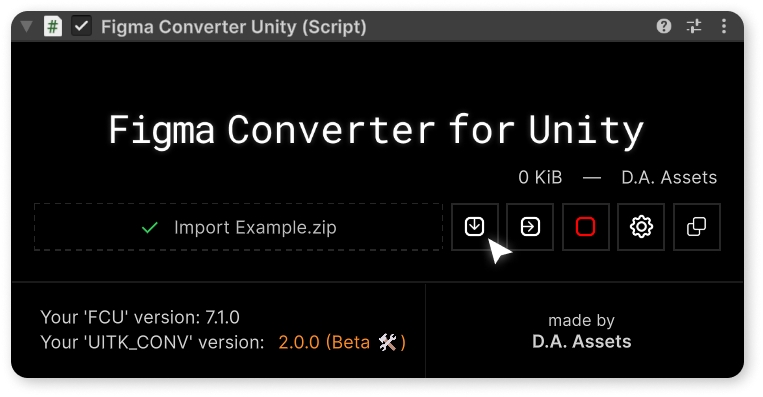
Select the frames you want to import and click the import button.
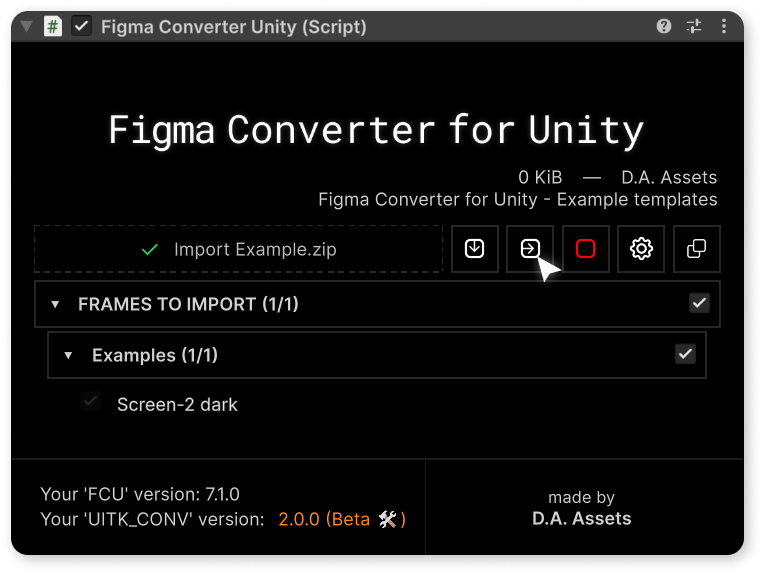
At the end of the import, you will see a message in the console - "Import complete!".