Basic Setup
Documentation for Basic Setup in the D.A. Localizator, covering setup, configuration, workflows, and troubleshooting for Unity projects.
Create a configuration for the table and add the table to the configuration using one of the methods described above.

The asset supports localization of three types of text components.
Here are the corresponding localizers for them:
- UnityEngine.UI.Text — UITextLocalizator.cs
Assigns the text to the built-in Text component provided by Unity.
- TMPro.TMP_Text — TextMeshLocalizator.cs
Assigns the text to the TextMeshPro components that inherit from the TMP_Text class.
- DA_Assets.UEL.UitkLabel — UitkLocalizator.cs
Assigns the text to UIToolkit text components using bindings provided by the "UIToolkit Element Linker" asset.
Let's consider assigning localization to a UI.Text component.
Create a text component in the scene and add the "UITextLocalizator" script to it.
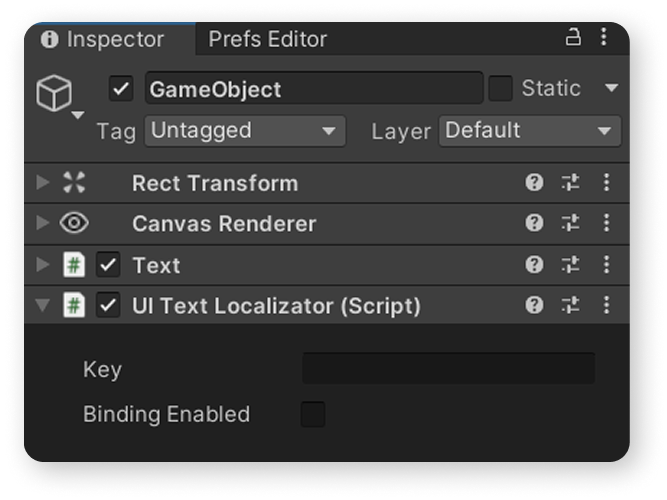
Add the key from your table that you want to use for localization.
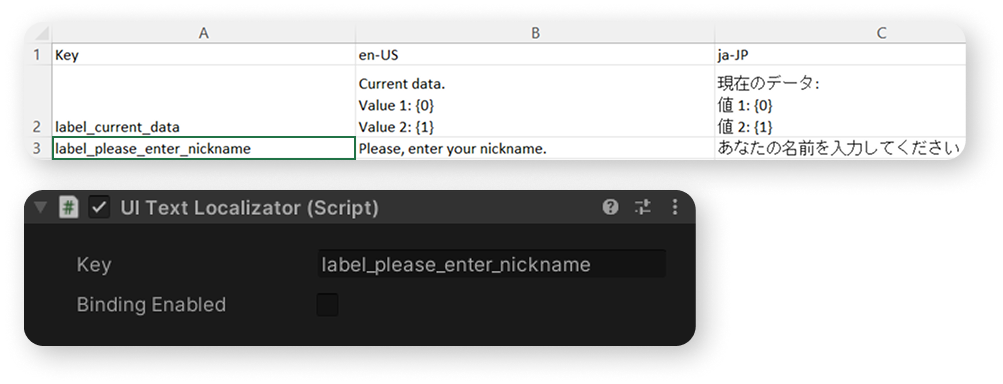
As you can see, after you assigned the code, localization has already been applied to the text component.
This will happen provided that the table is already specified in the configuration.
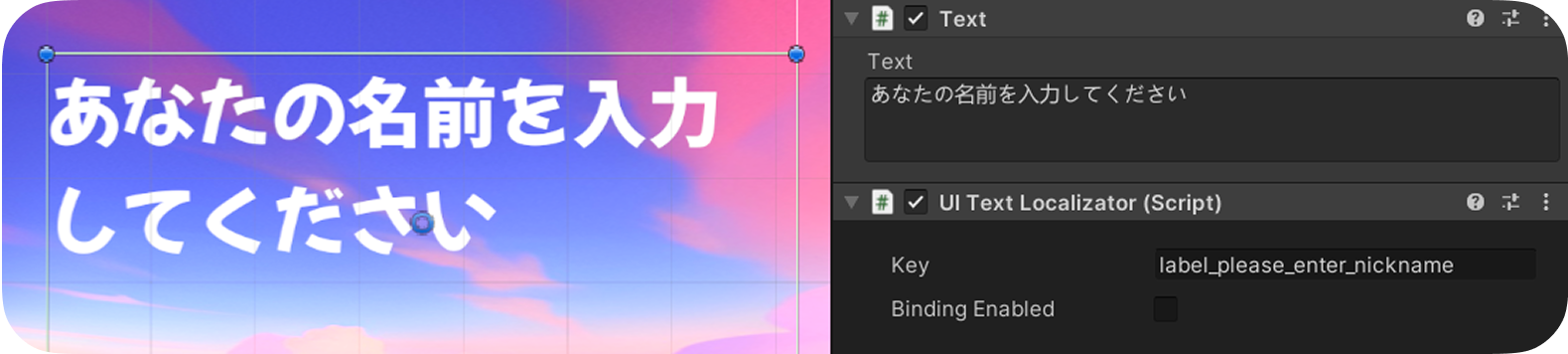
You can run the project in Playmode and see that localization is also applied.