Layout rules
Documentation for Layout rules in the FCU designer guide, covering setup, configuration, workflows, and troubleshooting for Unity projects.
The first 2 points are mandatory.
In most cases, you don't need to make any other changes to your layout before importing to achieve a correct result.
Disable "Clip Content" on frames before importing.
If you want to import section content, you need to convert them into frames:
- Right-click on the section.
- In the context menu that appears, select "Convert to Frame".
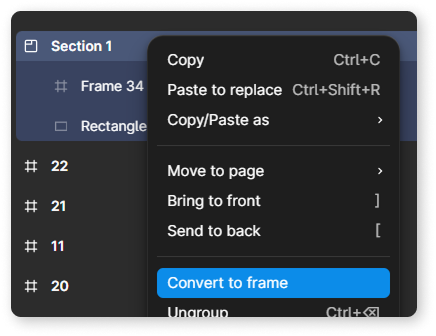
If you wanted a certain component to be imported as a single image, and this did not happen by default, see the "Image Merging" section.
If you want the components within your component to not be merged into a single image,
see the "Image Splitting" section.
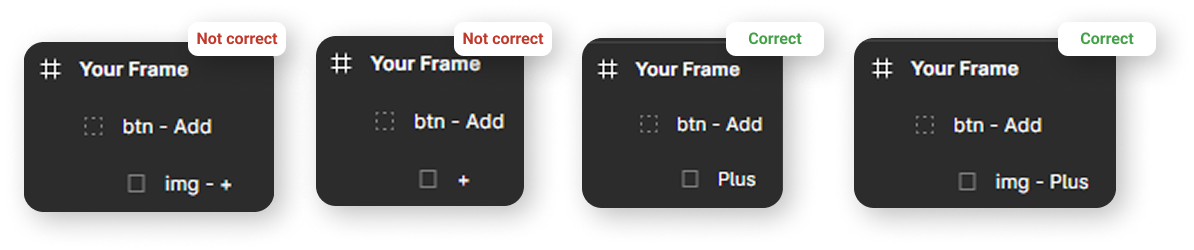
The text after the tag should not consist only of special characters.
Rules for parent components that contain child text components or any other elements that prevent the parent from being merged into a single PNG image:
- Do not place Effects and Image-Fill on parent components.
- If you are using UI.Image or SpriteRenderer, do not place Gradients on parent components.
- If you are using SpriteRenderer, do not add corner rounding to parent components.
If you violate these conditions, the fills and effects of such parent components will not be imported.
To resolve this, move those fills and effects into a separate child component.
Unity offers various tools to replicate Figma's graphical capabilities, such as procedural images with support for gradients and outlines. Please review "Compatibility Table for Figma Components with Unity Components" to better understand how your imported design will look.
Please review the "Example templates" to understand what to focus on when designing layouts in Figma for import.