UI
Documentation for UI in the FCU developer guide, covering setup, configuration, workflows, and troubleshooting for Unity projects.
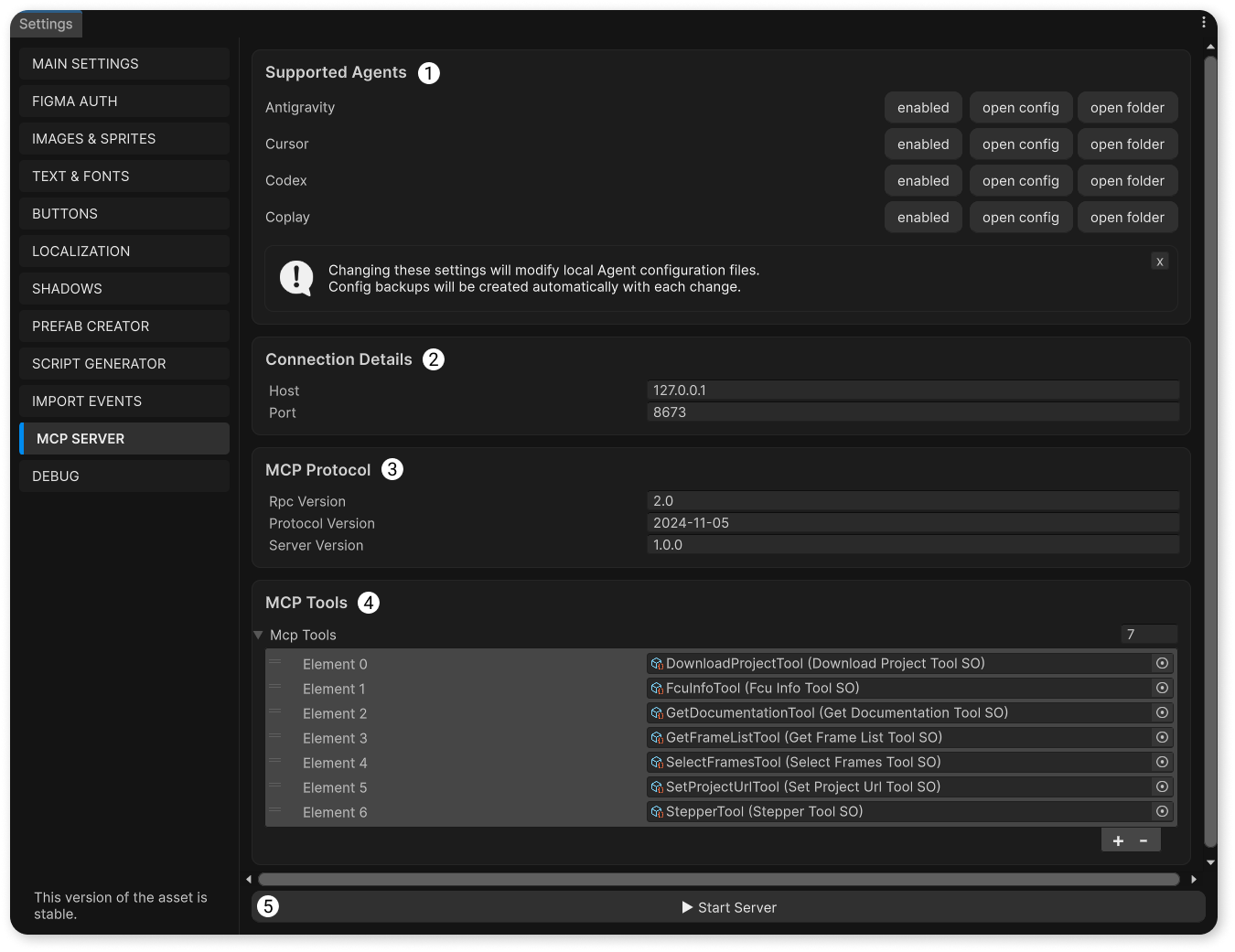
Supported Agents
A control panel for supporting different IDEs.
Currently supported IDEs: Antigravity, Cursor, Codex, Coplay.
The "enable/disable" button adds or removes the Converter MCP server from the config.
The "open config" button opens the config file in the default editor.
The "open folder" button opens the folder where the config is located.
Currently, when the config is updated through the Converter, the required information appears in it, but Coplay does not detect these changes.
You need to go to Coplay settings, open the "Settings" tab, click the "Edit MCP Servers" button, and manually paste the contents of the ".coplaymcp.json" file into that window so Coplay can detect the Converter’s MCP server.
The Coplay config is located in the "Assets/.coplaymcp.json" file, which can only be seen via your OS file explorer/finder.
Connection Details
The IP address and port on which the local Converter MCP server will run.
MCP Protocol
Converter MCP server protocol settings.
More information about MCP protocol versions can be found here.
MCP Tools
Existing Converter MCP tools.
If needed, you can view and edit the prompts of these tools by navigating to the corresponding ScriptableObjects.
Start/Stop button
The button to start or stop the server.
The server state will be preserved when scripts are recompiled or when the Unity project is restarted.